References
Overview
This walkthough is the very basics of setting up a Tailscale VPN for travel.
Scenario: You like to travel, but have trouble accessing your accounts (banking, social media, entertainment) while you’re abroad. You travel with a laptop, but you also have a desktop device back home. Wouldn’t it be great if you could just access your accounts and services like you were sitting at your desktop?
Setup
This assumes you have two devices. One that we’ll call server will serve as our Exit Node. We’ll call the traveling device(s) client.
An Exit Node will be the exit point for our VPN (Virtual Private Network). We’ll have an encrypted connection from our client devices back through the Exit Node, and out to the open internet. To external sites and services, it will just look like you’re accessing the internet from your home network.
Client ————-> Tailscale Server ————-> Exit Node ————-> Internet
Install Tailscale
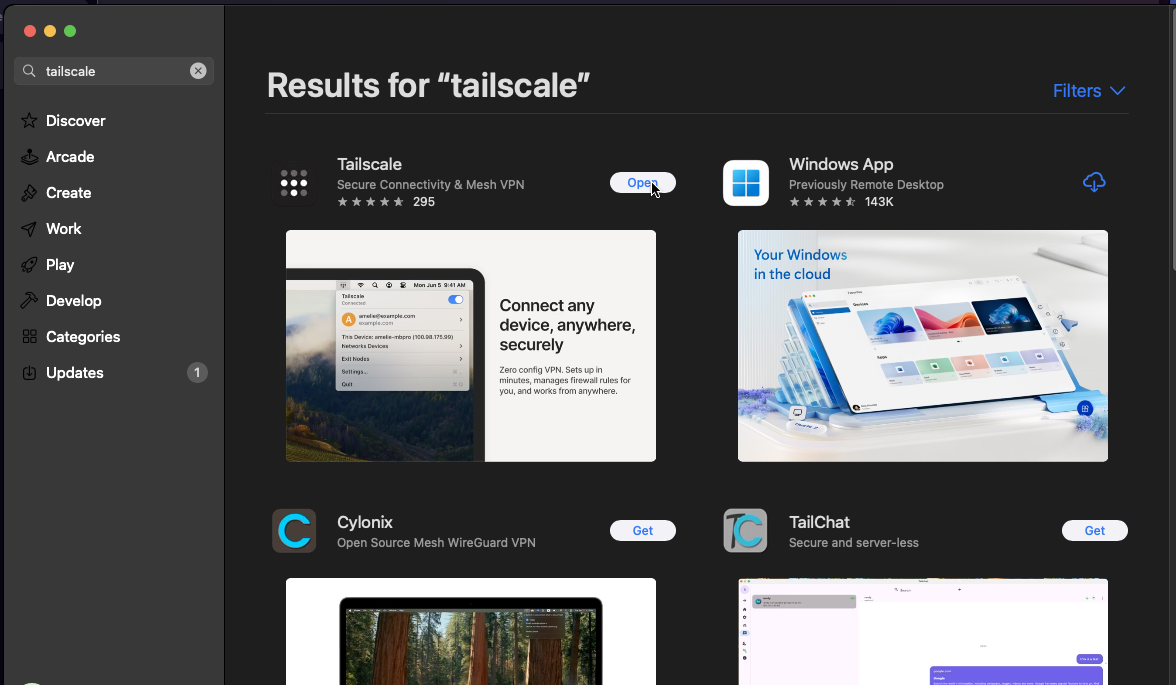
Download Tailscale from their site, or install if from your app store. This step is the same on both client and server devices.
Configure Tailscale
Create / Login to your Tailscale account via the app on both
serverandclientdevices.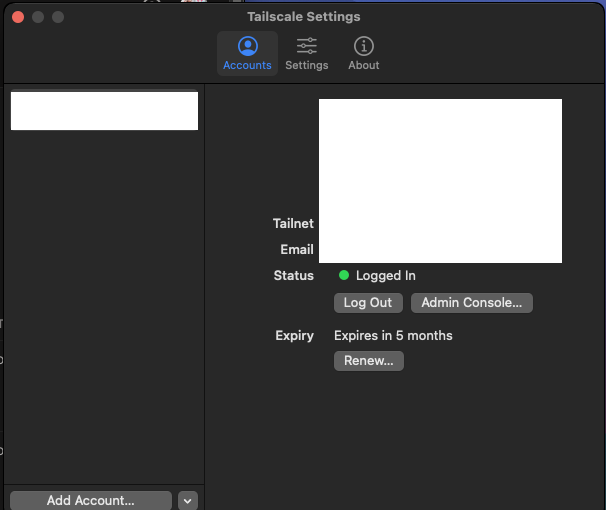
On the
server, configure tailscale to always run at startup, and to serve as anExit Node.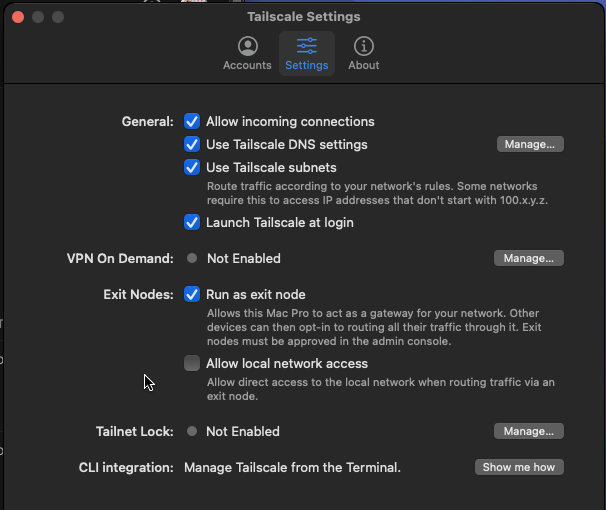
In the Tailscale Admin Cosole, select your
serverand enable it to serve as anExit Nodefor your Tailnet.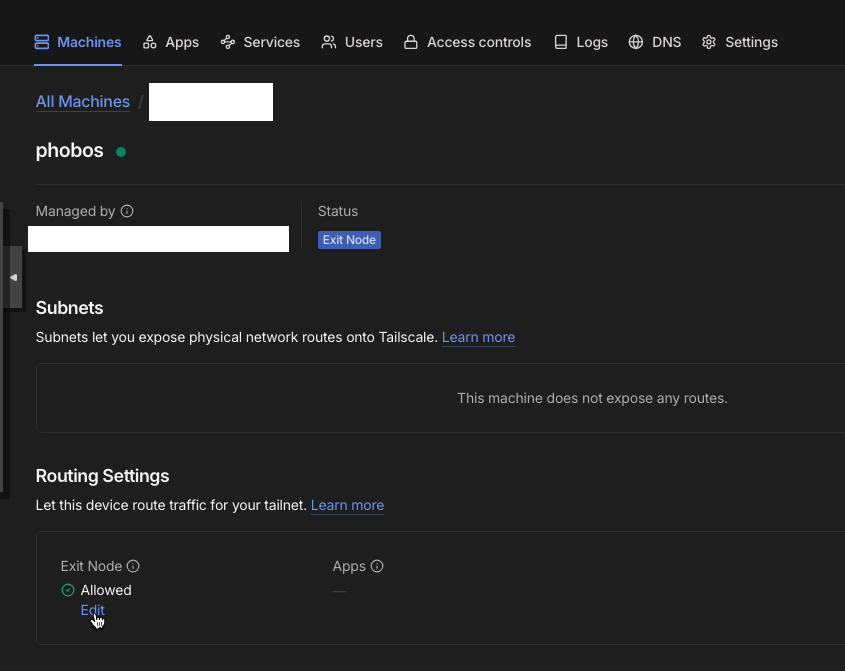
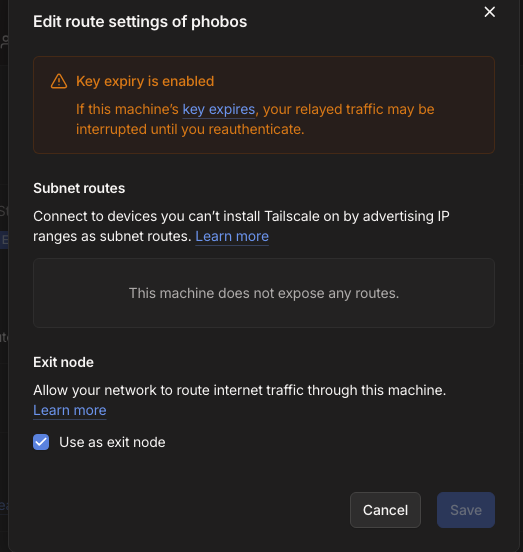
On your
clientdevice(s), select yourserveras your exit node.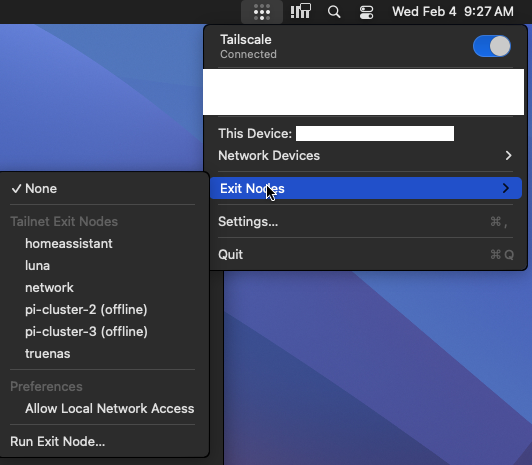
(Optional) You can disable key expiration on your
serverdevice. This is a security feature; however, if you’re going to be traveling for a while / don’t want to have to think about it again - disabling key expiration will ensure that yourserverwill remain logged into your Tailnet.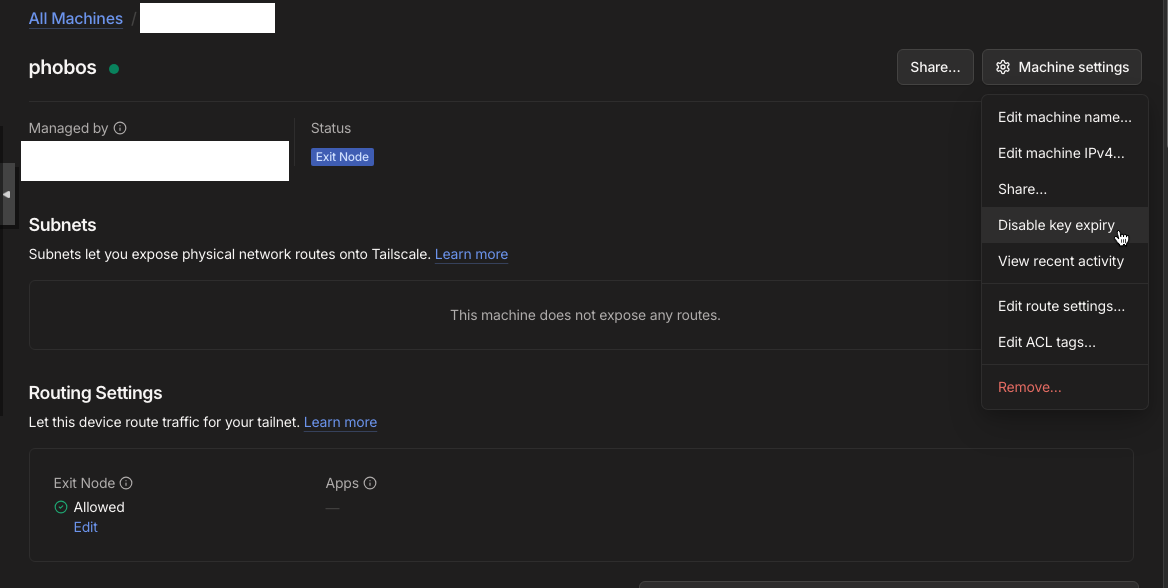
Conclusion
Tailscale has many more features not covered here - you can dive deep into Tailscale to configure DNS, service exposure, remote SSH access, access control rules… this tutorial barely scratches the surface.